![[Solved] AMD High Definition Audio Device Not Plugged In](https://www.technewstoday.com/wp-content/uploads/2022/09/AMD-High-Definition-Audio-Device-Not-Plugged-In.webp)
AMD High Definition Audio Device Not Plugged In shows up as an error in the sound panel, and it usually causes your audio to stop working or degrade in quality. The AMD HD audio serves as an audio device that works through HDMI cables or display ports.
So, while this error can appear in laptops, they don’t cause any issues. This usually affects the audio when using a desktop setup with HDMI cables and display ports.
In this article, we will show the cause and fixes for the AMD HD Audio not plugged in error.
Why Does AMD High Definition Audio Device Not Plugged In Error Occur?
- Faulty AMD or PCI BUS driver
- Misconfigured Settings
- Missing Service Accounts
- Corrupted System Files
How to Fix AMD High Definition Audio Device Not Plugged In
There are some simple fixes for resolving the AMD HD Audio error in the sound panel, and here’s how you can perform them.
Run the Audio Troubleshooter
Windows has a built-in troubleshooter for checking and fixing issues for various Windows processes. The audio troubleshooter does just that for errors in the system audio.
If your audio is not working properly after this error message appears, you can try running the audio troubleshooter.
- Press Windows + I hotkey to launch Settings.
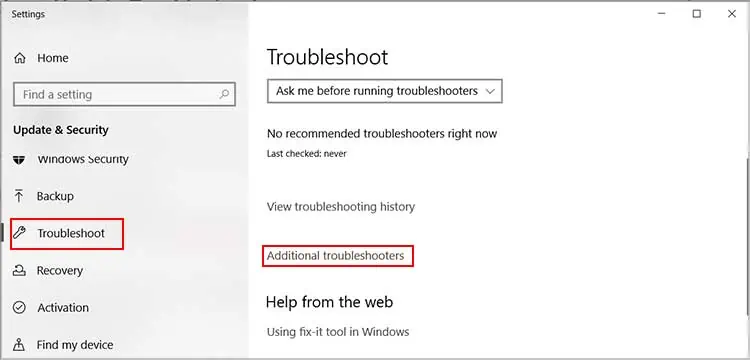
- Navigate to Update & Security>Troubleshoot.
- In the right panel, choose Additional troubleshooters.

- Tap on Playing Audio and select Run the troubleshooter.
- Follow the on-screen troubleshooter instructions.
Update AMD High Definition Audio Driver
The AMD Audio error is mostly due to faulty or corrupted drivers. It could also be due to improperly updated AMD Audio drivers. Updating the driver to the latest build helps in this situation.
Here’s how you update the AMD driver:
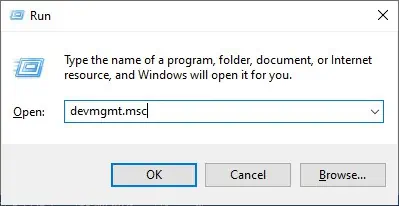
- Launch the Run box using Windows + R shortcut.
- Enter
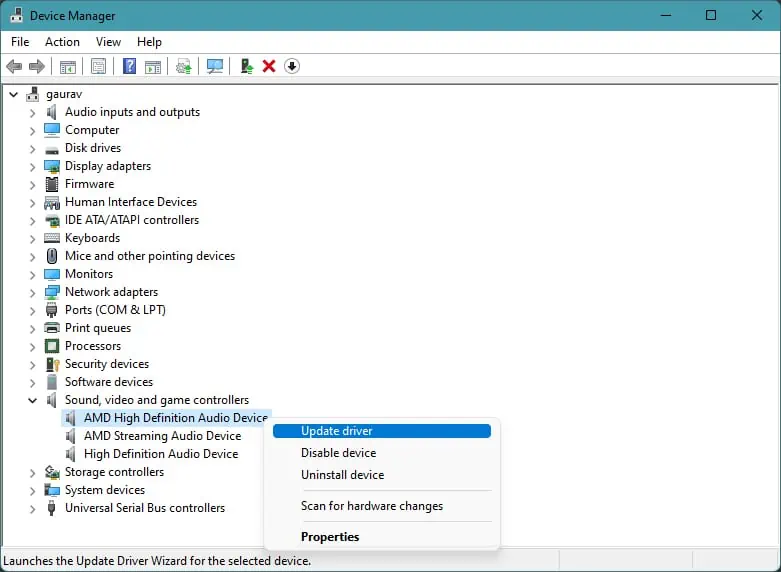
devmgmt.msc - Locate Sound, video and game controllers in Device Manager and click on it.
- Right-click AMD High Definition Audio Device and tap on the Update driver option.
- Tap on Search automatically for drivers.
It may show that your driver is up to date but can give you the option to check in Windows update. If the update is available, you can install it from there.
Reinstall AMD High Definition Audio Driver
If updating the driver doesn’t work, you can reinstall it to resolve this issue. All the errors in your previous driver will get deleted with the driver, and a working driver will take its place after reinstallation.
Follow the steps below to perform a reinstallation:
- Open Device Manager using the method above.
- Double-click Sound, video and game controllers menu and right-click AMD High Definition Audio Device.
- Tap on Uninstall driver and confirm it.
- Restart your computer.
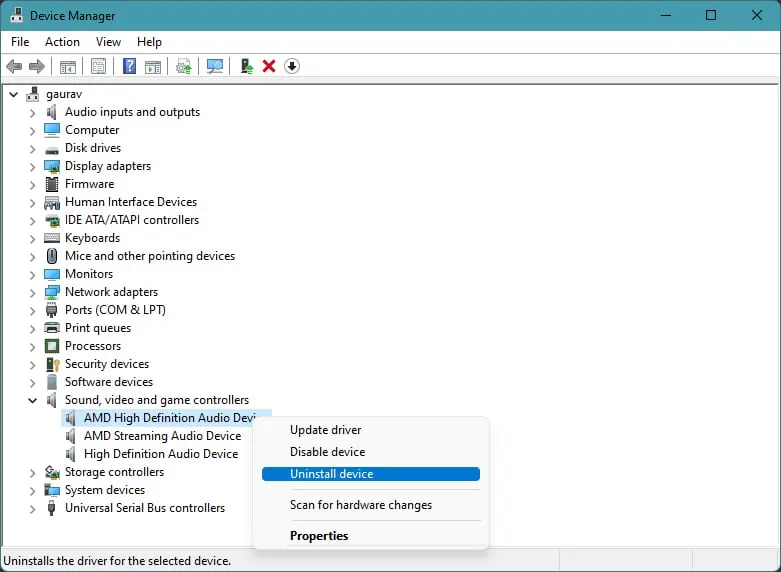
When your computer restarts and detects the missing drivers, it will automatically reinstall them.
Update the PCI Bus Driver
The PCI Bus driver doesn’t directly affect the AMD Audio driver, but the PCI driver does handle the connection between the system and the AMD video card. If this driver is facing any issues, your computer may not recognize the AMD Audio device.
Follow the steps below to update this driver:
- Access Run dialog box using Windows + R key combination.
- Type
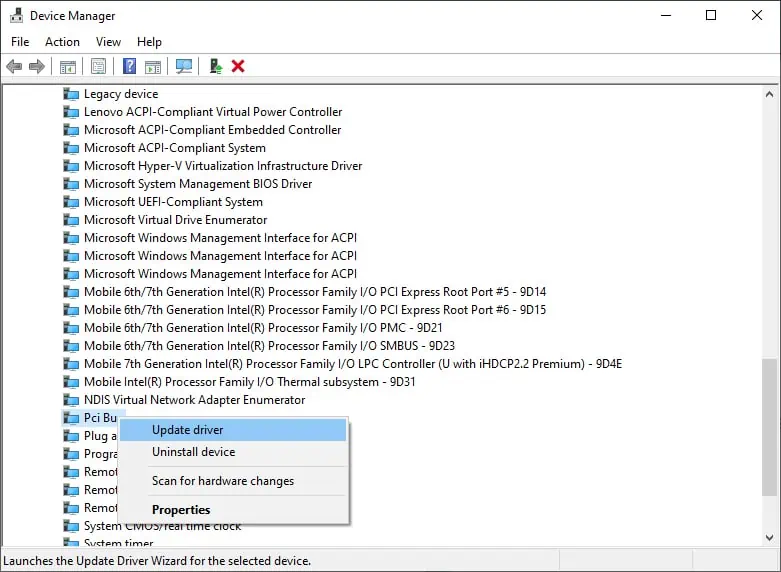
devmgmt.mscand press Enter. - Double-click on System devices menu and locate PCI Bus driver.
- Right-click PCI driver and tap Update driver.
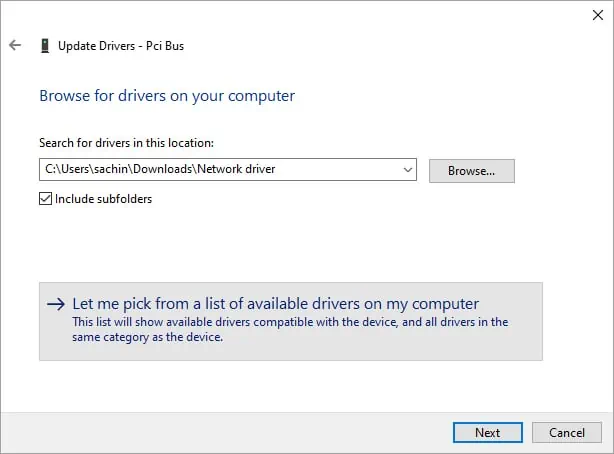
- Tap on Browse my computer for drivers option and Let me pick from a list of available drivers on my computer.
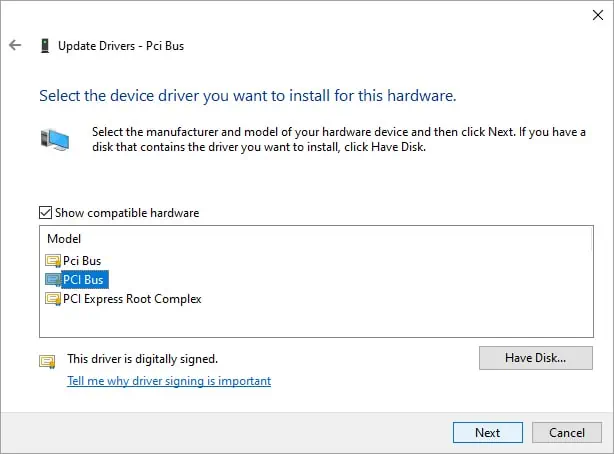
- Select the PCI Bus from the list and click Next.
- Restart your computer.
Manually Add Network Services
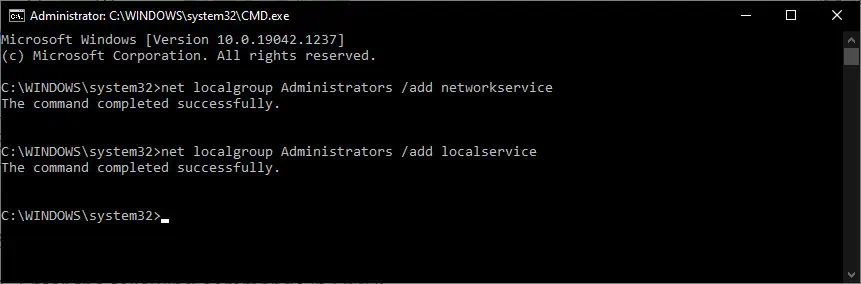
This error can also appear when service accounts are missing from Administrator groups. It could be caused by recent changes you made or, in some instances, even Windows updates. To solve this, you must manually add network services to restore service accounts.
Here’s how you can do it:
- Press Windows + R key to open the Run dialog box.
- Type
cmdand press Ctrl + Shift + Enter to open Elevated Command Prompt. - Enter the following commands in CMD:
net localgroup Administrators /add networkservicenet localgroup Administrators /add localservice
- Exit CMD.
- Restart your PC.
Restore Default Settings
Misconfigured settings are a common reason for errors like this occurring. You can try restoring the default settings in the sound panel to help resolve this issue.
To restore default settings in the sound panel, follow the steps below:
- Press Windows + R hotkey to launch Run Utility.
- Enter
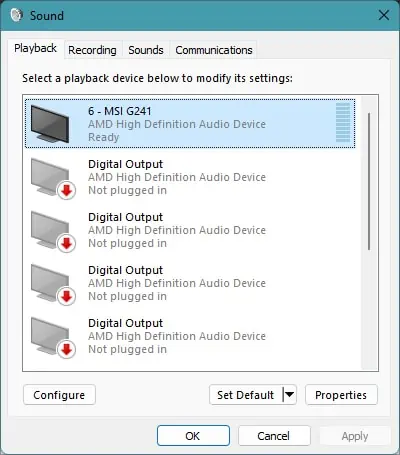
controlto open Control Panel - Navigate to Hardware and Sound>Sound. (In category view)
- In the newly opened window, select the AMD HD Audio device and tap on Properties.
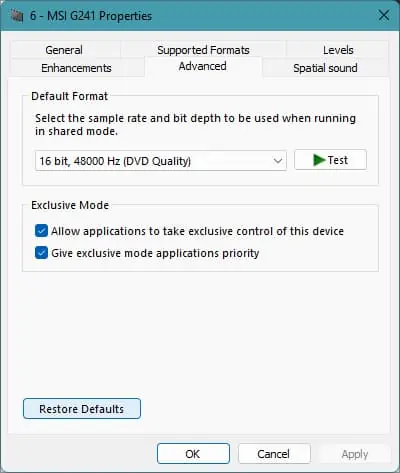
- Go to the Advanced tab and hit Restore Defaults.
- Click Apply and OK.
Run DISM and SFC Commands
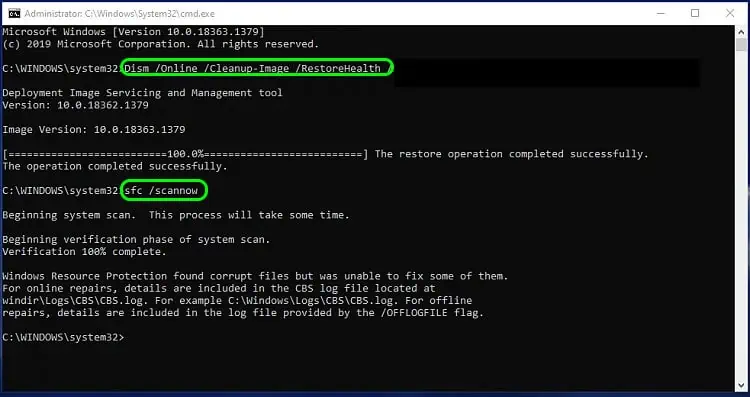
The DISM and SFC commands are advanced troubleshooting commands that help fix various errors in Windows. It helps restore Windows image and repair corrupt system files that may have caused the error.
Here’s how you can run the SFC and DISM commands:
- Search Command Prompt in the search bar and right-click on it.
- Choose Run as administrator.
- Run the following commands in Command Prompt.
DISM online /cleanup-image /restorehealthsfc /scannow - Exit Command prompt.
- Restart your PC.